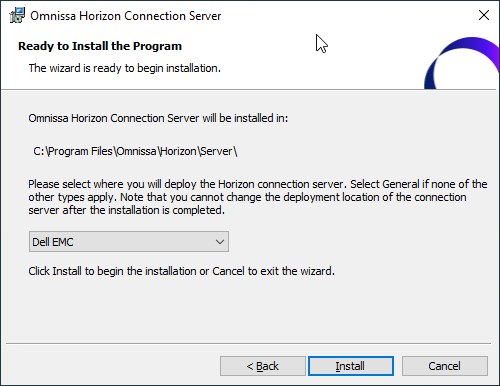
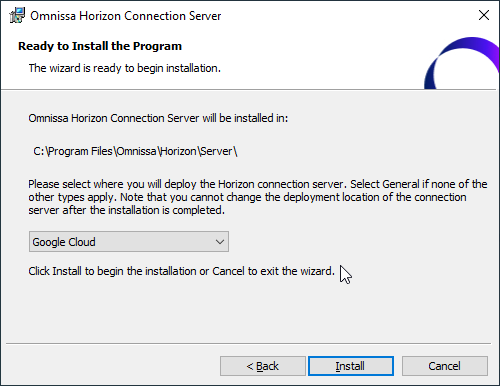
Horizon 8 has always* had an extra dropdown at the end of the installation wizard accompanied by an ominous sounding, yet un-highlighted warning: “Note that you cannot change the deployment location of the connection server after the installation is completed.”
(*well, as far back as 2012 at least, admittedly I did not have an original 2006 build laying around still)
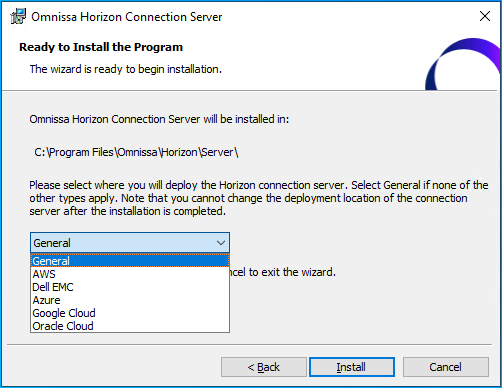
The extent of the documentation on what exactly happens here seems to be restricted to Step 15 of https://docs.omnissa.com/bundle/Horizon8InstallUpgrade/page/InstallHorizonConnectionServerwithaNewConfiguration.html
.. ok, uh, great?
Once I started thinking about it a bit, it made my eye twitch – I like to know why I need to select options being installed into my environment and what those options actually change. This wasn’t cutting it so I needed to dig a little deeper – surely it’s some major code difference between the various platforms, right?
To solve this, I went ahead and installed Connection Server 6 different times to cover all the options so you don’t have to.
Testing Methodology
- Installation of Horizon Connection Server (2503) as a Standalone node on Windows Server 2022
- Select one of the options on the final screen of the install wizard (pictured above) and finish the install
- Look for evidence of what was selected in the Horizon Administration Console
- Export the Configuration, Schema and full ADAM database using ldifde to .ldif files
- Copy all the .ldif files and entire C:\Program Files\Omnissa\Horizon\Server directory off to another machine for comparison
- Revert to snapshot, rinse, repeat for each option.
Horizon Administration Console Changes
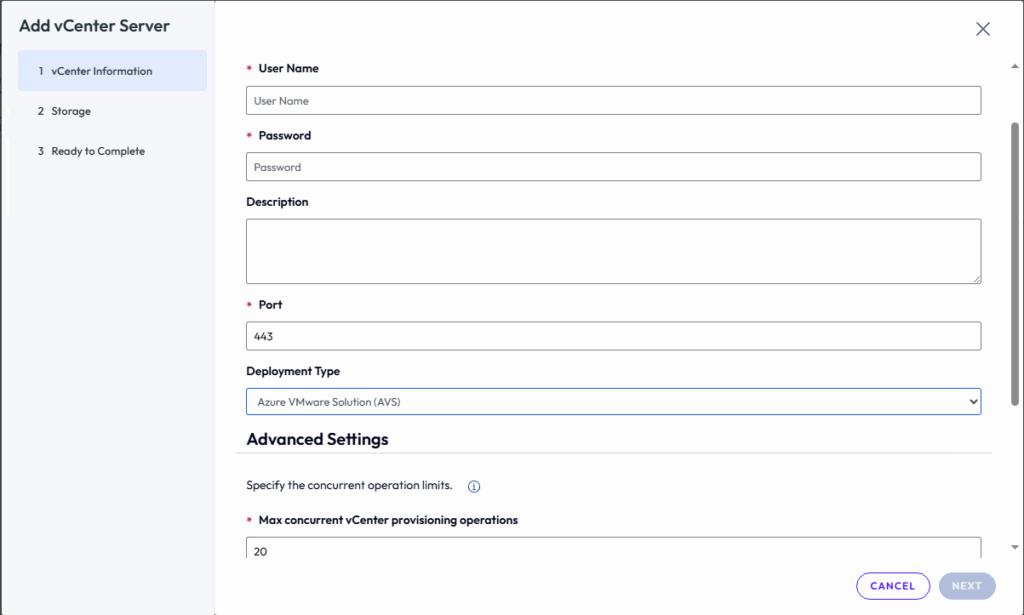
My first step was to launch the admin console after each install and look for anything obvious in any of the screens. Nothing really popped out until I dug down into Servers,went to the vCenter Server tab and clicked Add.
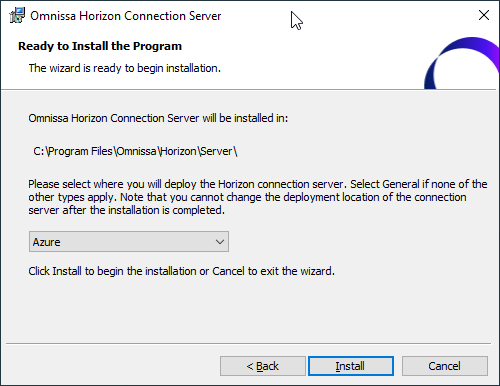
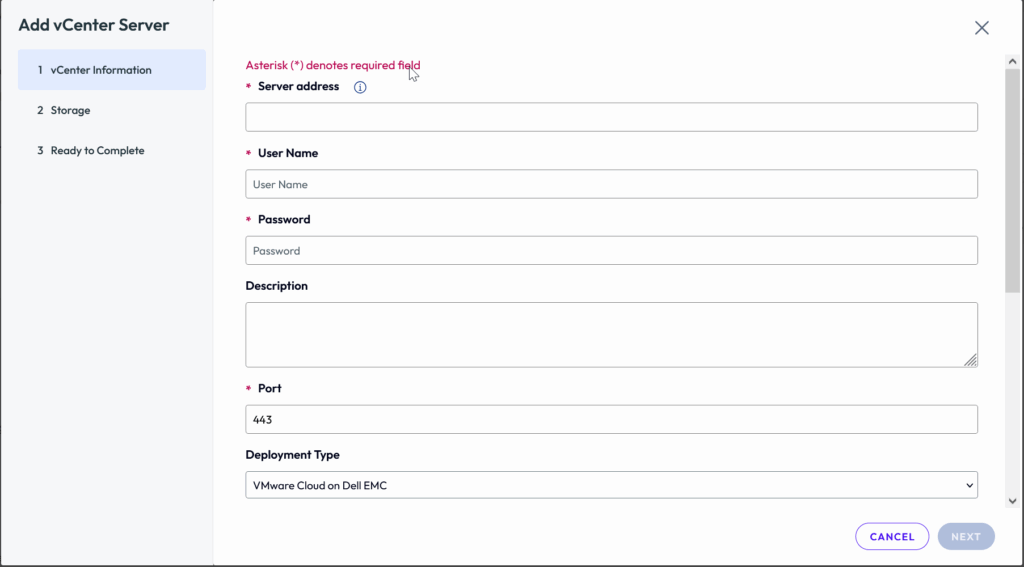
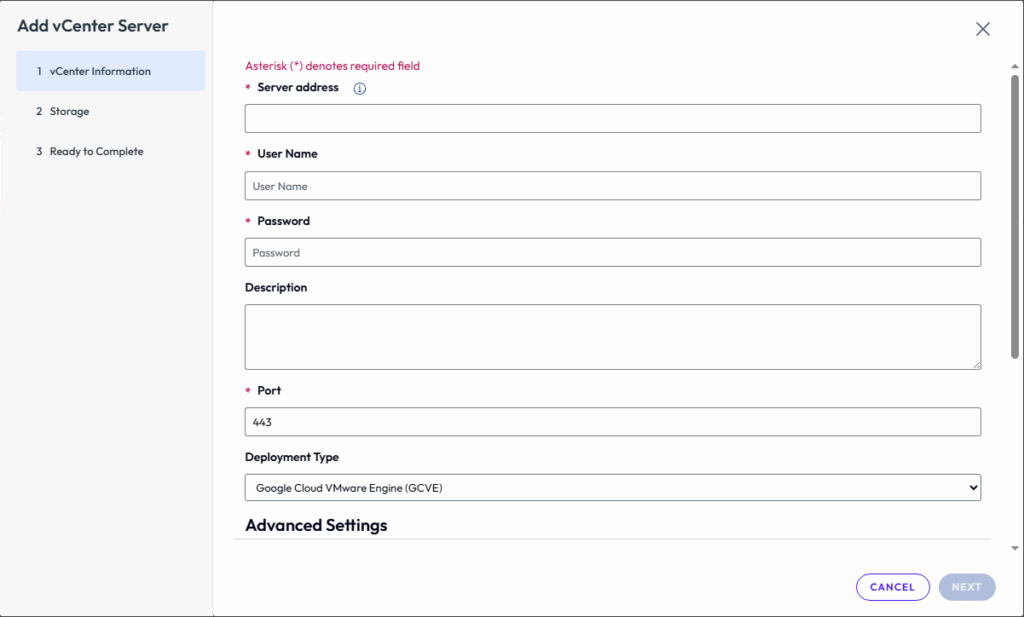
This is where I finally saw an actual difference – The Deployment Type dropdown box had changed to match what I had selected on that last screen of the install wizard.
Installed for Azure:
Installed for DellEMC:
Installed for Google Cloud:
Installed for Oracle Cloud:
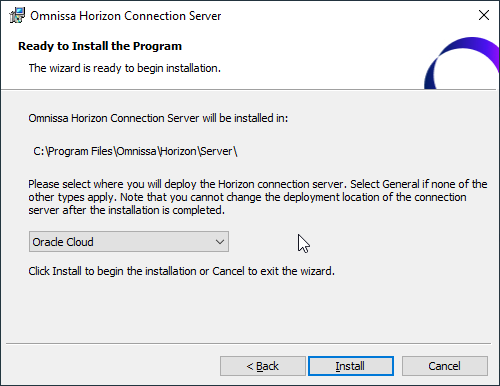
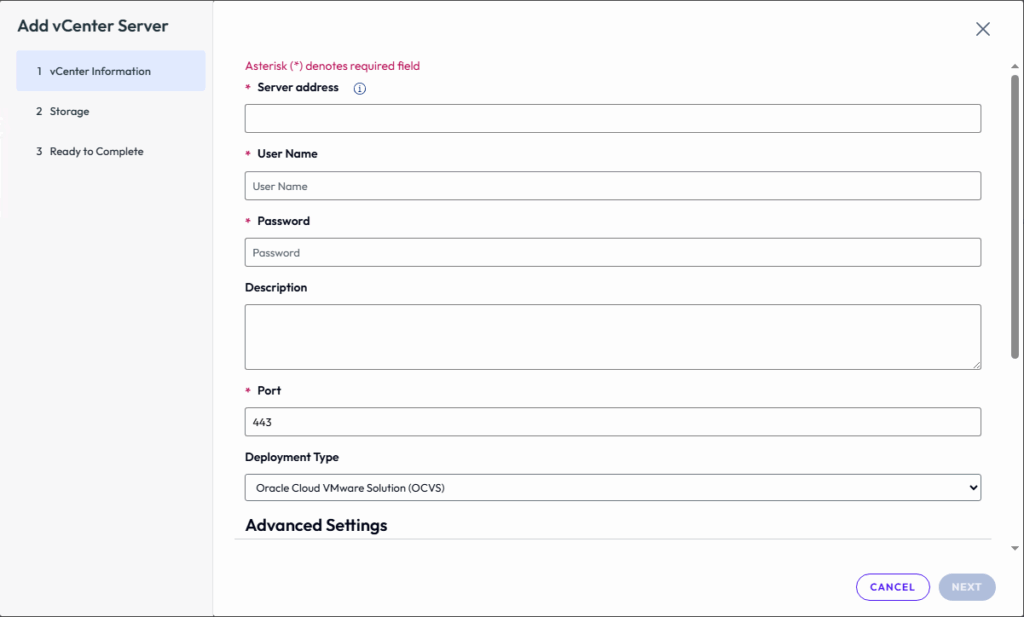
Installed for Amazon:
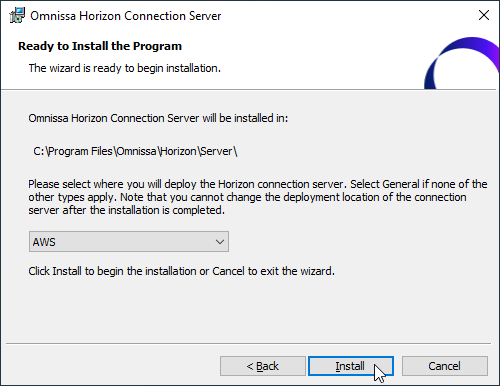
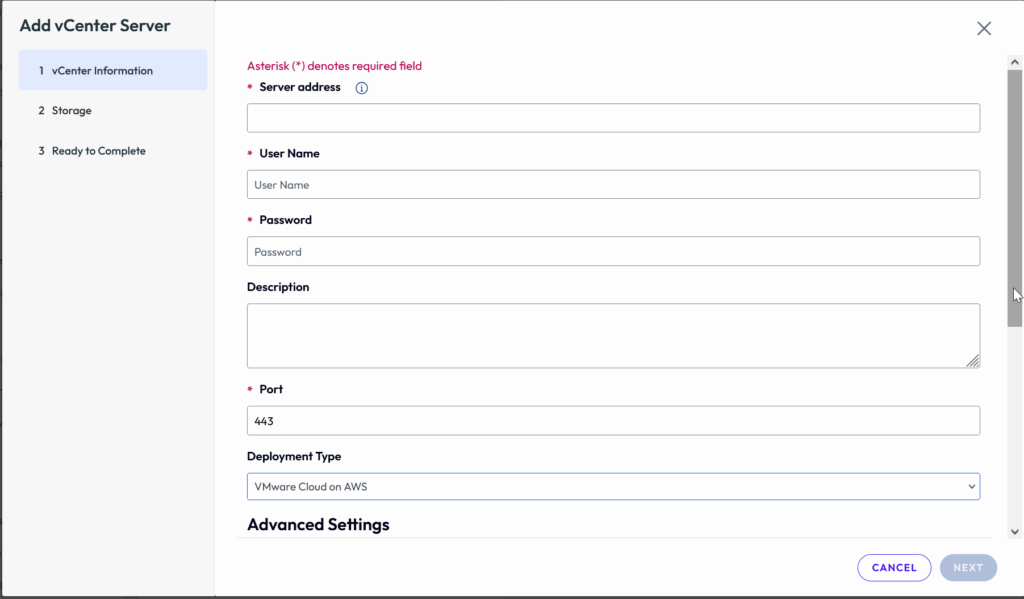
You might be thinking that shows definitive proof that what you select during install locks you into that platform. However, selecting the Deployment Type dropdown box still shows that all 6 options are still available to add a vCenter from – which makes sense given the advertised cross-cloud deployment that Horizon has been aiming for these past couple years:
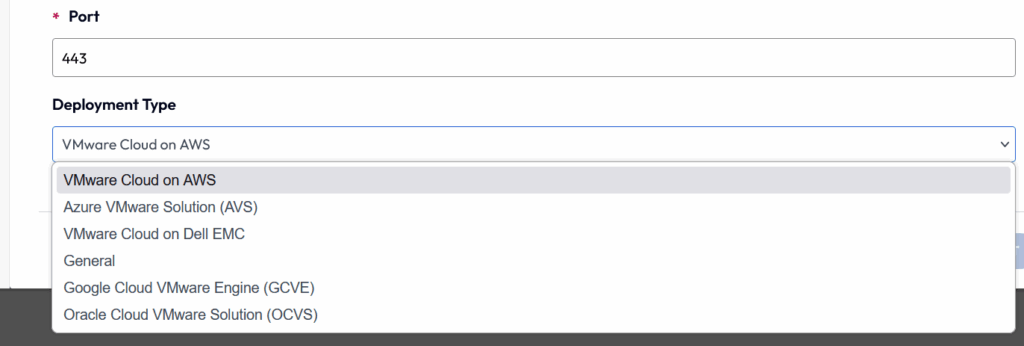
It’s also important to note that under all (current) install circumstances, the Add button under the Capacity Providers tab continues to show Amazon WorkSpaces Core as the singular option.
Comparing the Server Files
Utilizing Winmerge, which is a wonderful little comparison tool for up to 3 files/folders at a time, I compared the files that actually were installed on the various snapshots looking for any significant changes. The only real differences from installation to installation were expected for this type of software install:
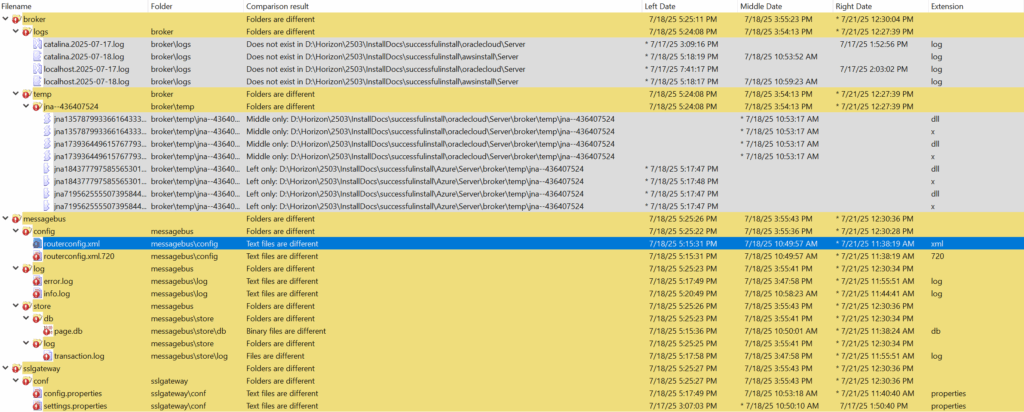
The graphic above doesn’t show the entire directory structure under C:\Program Files\Omnissa\Horizon\Server, but just files/folders with actual differences. As several files are created at install time by software such as Horizon, what’s different is expected and none of the actual DLLs or executables themselves showed up in my analysis. When digging into some of the files themselves that did surface, the differences were items such as GUIDs, certificate thumbprints and other runtime log files.
Ok, so no real significant changes in the files, that really only leaves one last place to look: The installed ADAM instance.
Peeking into ADAM

No, not that one.
I’m dating myself here on a couple fronts here: One obviously being a reference to Coleco’s poor attempt to compete with my beloved Atari 8-bits (or your beloved C64, but that’s a religious argument for another time), but keeping Active Directory Application Mode stuck in my head when it’s been referred to as Active Directory Lightweight Directory Services (ADLDS) since, uh, 2008.. Could I go back up and edit my original reference? Sure, but then I wouldn’t have a good place to plug some classic computing references in!
Back in the long-before times, there was a humble little tool called LDIFDE.exe packaged with Windows ever since Active Directory was first released in the year 2000. This allows you to dump ADLDS (or AD itself) information directly down into the handy, standard text-based .LDIF format for importing/exporting into LDAP based directories and, in this case, spending an afternoon analyzing differences between directories.
I exported files for each of the installations corresponding to the 3 root level containers in the Horizon ADLDS:
- CN=Configuration,CN={ .. UNIQUE GUID for each Connection Server install.. }
- CN=Schema,CN=Configuration,CN={ .. UNIQUE GUID for each Connection Server install.. }
- DC=vdi,DC=horizon,DC=internal
One fun thing I discovered was that the exports were not uniform regarding lines or container/attribute order:
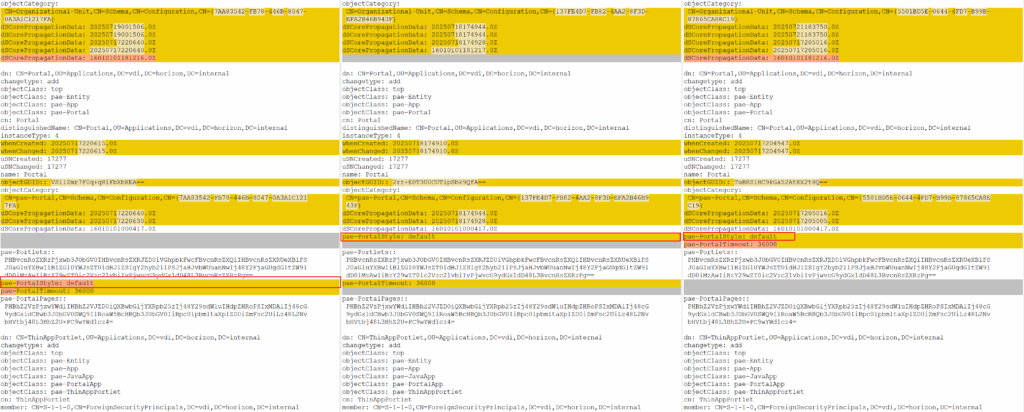
Even though I did export the ADLDS partitions right after installation, there were a decent number of differences between the various files, though nothing of particular significance – just like with the server files, the inconsistencies between everything in the Schema and Configuration containers were things unique to each specific server install (GUIDs, thumbprints, etc.)
It wasn’t until I started digging into the main DC=vdi,DC=horizon,DC=internal container that I finally dug out the magic setting. The one change I was looking for that hammered in the choice I made during character creation, er, installation.

In the interest of screen size, sanity and transparency, I admittedly merged 3 screenshots for that side-by-side, due to the problem I mentioned earlier – there was no uniform lineup of the data – but sure enough down under CN=Common,OU=Global,OU=Properties,DC=vdi,DC=horizon,DC=internal is a property called pae-DeploymentType with a value that matches one of the (text) values under a different container, pae-DeploymentFeatureMap.
Currently the available options in that key are as follows:
pae-DeploymentFeatureMap: ORACLE=1020
pae-DeploymentFeatureMap: GOOGLE=1020
pae-DeploymentFeatureMap: AZURE=4704
pae-DeploymentFeatureMap: DELLEMC=897
pae-DeploymentFeatureMap: AWS=6019
pae-DeploymentFeatureMap: GENERAL=3068
What do the numbers mean? Good question! The closest I could find is something related to some internal provisioning option based on an old KB article (90406), so I would guess they correspond to feature sets supported by each platform. I’m going to go out on a limb and say there’s probably math involved as well based on how I’ve seen other programs handle things, but alas, not documented (and if i’m wrong on that, please feel free to call me out.)
We can see in the ADLDS database where pae-DeploymentType is set to what we selected during the install process as seen in my AWS install example below:
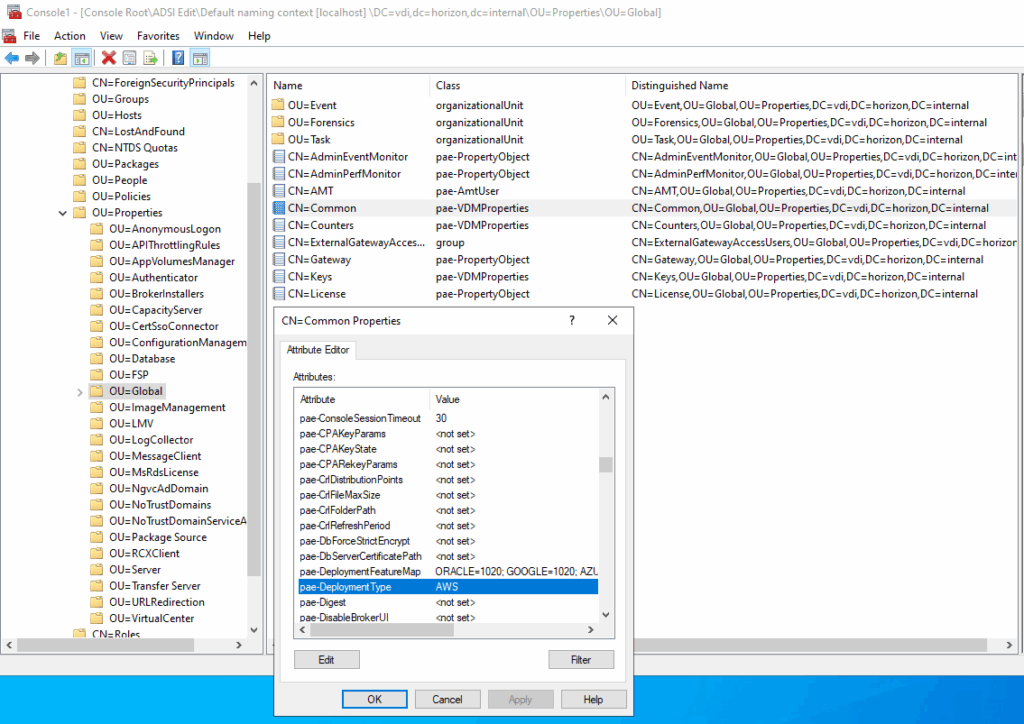
Whatever that is set to, determines the “default” vCenter type you see when adding one under Servers. Since this change is in the ADLDS, you can actually see the effects of a change immediately within the Horizon Admin Console:
So.. I’m OK?
Yes. Long story short is that regardless of what you select during install, your Horizon environment will still function if you select the wrong platform during install, and you’ll still be able to select the appropriate vCenter/Capacity Provider when going to add the server. Now, if you go and select the wrong platform again when in the Horizon Administration Console itself, well, can’t help ya there (and yes, it’s entirely possible – my internal lab vCenter below is most definitely not running on AWS)
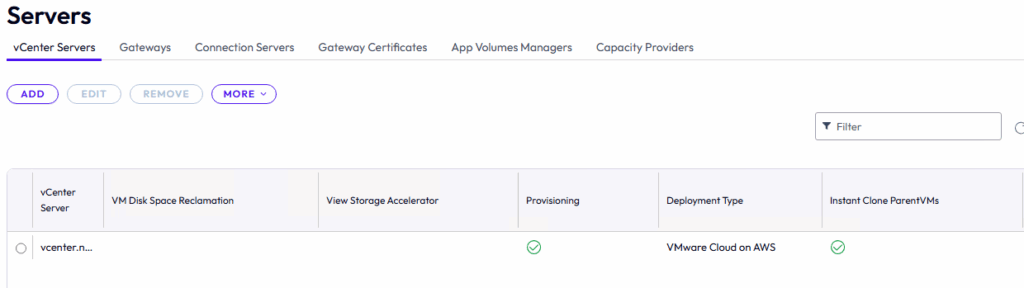
tl;dr: No major code changes based on your selection. The only significant change I have been able to identify has been what pae-DeploymentType is set to under CN=Common,OU=Global,OU=Properties,DC=vdi,DC=horizon,DC=internal (testing on 2503, ymmv if working with earlier versions) and regardless of where your Horizon environment is living, you can always point it to the right configuration.
Comments
Join the conversation on Bluesky