Prologue
I had always originally intended to post this here but life, work and having to relearn some web design basics recently all got in the way. As a result, this is pretty much a repost of what I threw up in the Omnissa community forums, buried under someone’s question.
The Scenario

Once upon a time it was not uncommon for Microsoft SQL Server databases to be secured by users that only existed on the SQL Server itself, with privileges granted to the database(s) they needed for whatever application needed it. Usually these were created by a SQL admin before installation or even worse, temporary sa privileges (or using sa itself) would be granted for installation purposes and then permissions pulled back once an application was running. This was the happy medium that existed since the 20th century, and was still fairly prevalent when App Volumes was released.
As the IT world has advanced, there has been far more of a focus on security, least privilege, zero trust and all the other things that tend to discourage the use of non-expiring passwords for accounts, especially those that run mission critical infrastructure like VDI environments have become in this increasingly remote/always on world.
The alternative to this of course, is using the always built-in, always enabled Windows Authentication method. This makes SQL admins happy, because they get out of the account and password reset business, it makes security teams happy because it’s subject to domain rules around password expiration and policy, but it tends to cause issues with 3rd party applications because unless there are mechanisms built into the installation method, modifications to how a service runs, required system privileges and other moving parts, things tend to break somewhere along the way. App Volumes is no different, and as a result, even when I was in VMware PSO we tended to go the route of least resistance/least issue and push for SQL Authentication accounts, usually bolstered by the fact we still needed one for the Horizon security logging. I’m not going to pretend that didn’t lead to some “interesting” conversations over the years in more security conscious environments, but usually the fact we were there on paid engagements for limited times, and by far and away weren’t the only vendor with such requests were enough to push forward, but we absolutely ran into situations where the higher security route was going to be required no matter what.
Luckily, it’s entirely possible to make this work without any special permissions outside the App Volumes database itself, and keep the SQL team happy – there were at least a few of us in PSO that had this memorized, but for whatever reason never published anything public about it. A lot of the confusion tends to come from how Microsoft account principals are handled across the various environments, and how AV connects to the database via ODBC.
Installing App Volumes with Windows Authentication
No special permissions? Great, let’s install!
<insert montage here ultimately ending in failure due to a cryptic message about being unable to generate a self-signed certificate, followed by frantic searching on the web, asking copilot, opening a support case>
So, there are a few prerequisites and concepts to understand before you just jump right into the installation. First and foremost of which is understanding that a Windows service running as SYSTEM will always be talking to the rest of the network as the computer account itself. Now, you may jump to the conclusion that “Well, I’ll just run the installation program AS SYSTEM!” but nope, that won’t work either as I get into below:
Prerequisites
Active Directory Requirements
- “Service” Account for App Volumes (DOMAIN\AVexample): at a minimum for install purposes, usually also the one used for connecting to vCenter and Active Directory. Technically the service won’t be running under this security context, you will need the account for vCenter operations and Active Directory queries so the same caveats apply (should be different password expiration policy than normal user accounts, etc.) This account must be placed into the local administrator groups on the intended Manager boxes.
- Domain Security Group for the App Volumes Managers (DOMAIN\AppVol Managers): This is not a group for users, or even the service account, it’s for the actual App Volumes Manager computer accounts themselves (DOMAIN\AppVolMgr01$, DOMAIN\AppVolMgr02$, etc) – add all your managers in a given pod to this group. This can be done before you even bring the Manager machines up into the domain so long as you pre-create the computer accounts and add them. If it’s done after the fact, it’s imperative that the various Windows machine are rebooted before starting the App Volumes Manager install process so that the computers have the correct security context. This is a step that gets missed way more often than not, so if you aren’t 100% sure you just rebooted the machine, do it again now.
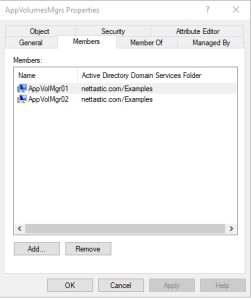
Example of a Windows group with only Computer Accounts for the AV Managers
SQL Server Requirements (must be done after AD requirements are met)
- Be nice to your SQL admin, reassure them you are not going to break their cluster. Cookies help.
- Have a blank database pre-created for App Volumes
- Under Security\Logins have a login object created for the App Volumes service account itself (DOMAIN\AVexample), assign it ownership of the blank App Volumes database as dbo. Leave Server Roles to only be public.
- Important note here: Only user objects can own databases in SQL Server – An entity of type database cannot be owned by a role, a group, an approle, or by principals mapped to certificates or asymmetric keys. This comes into play later.
- Under Security\Logins have a login object created for the App Volumes Managers Group (DOMAIN\AppVol Managers above)
- Set default database to the App Volumes database
- Server Roles: leave the default of “public” only checked
- User Mapping: Check the App Volumes Database – it should populate the User column with the DOMAIN\AppVol Managers group, select dbo for the default schema
- Leave Securables and Status at their defaults
- In the App Volumes database itself, under App Volumes Database\Security\Users, you should see the group. Under the properties of that object validate the following:
- General:
- User type = Windows User (should be greyed out)
- User name and Login name should both match and be set to the computer group
- Default Schema: dbo
- Owned Schemas:
- Schemas owned by this user: db_owner
- Membership:
- Database role membership: db_owner
- Securables and Extended Properties require no changes
- General:
Running the App Volumes Manager Installer
- Login as your DOMAIN\AVexample account, which is a local administrator and will be able to connect to the database initially for ODBC testing
- Checkpoint: Are you sure the computer has been rebooted since being added to the domain security group? If not, you’ll have to butter up the SQL Admin again to recreate the database
- Run the App Volumes Manager installation process and on the Database Server screen make sure that Windows Integrated is selected and the other fields are correct:

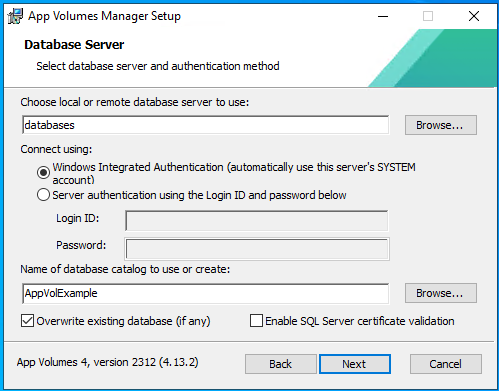
- Note: My original post had the following statement: Make sure Overwrite existing database (if any) is checked. If you don’t, you will make it all the way through setup “successfully” – right up until the point where you launch the App Volumes manager and get a nice face full of SQL error, and then when you look at the database all the tables will look like this:
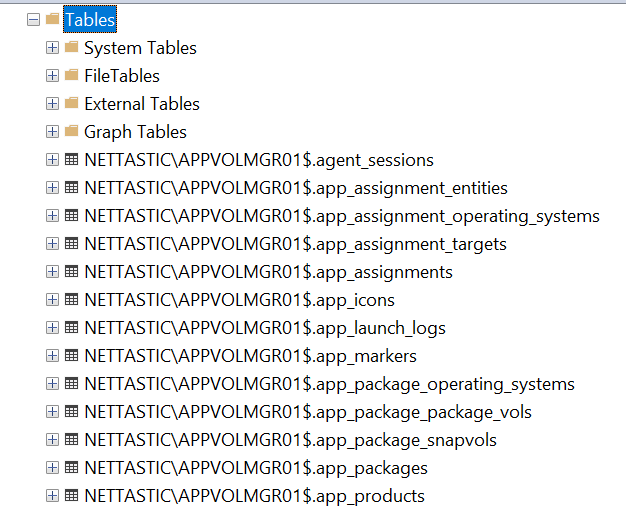
This is bad.
Which was a perfectly true statement for the older versions of AV I had initially tested on. In that case, APPVOLMGR01$ was the computer account the installation was run from. Good news in that case was that you got past the self-signed certificate error, bad news was that you still had to go back and redo everything because you want your tables in SQL to look like below:
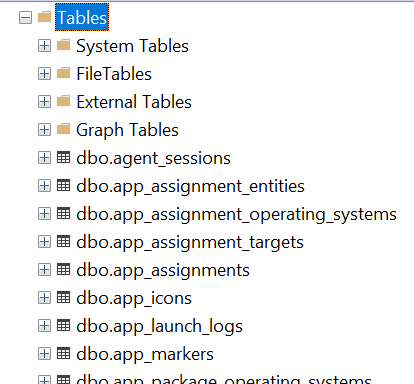
This is good.
Everything should start with dbo, and your initial Manager interface should come up to let you finish the configuration process. In my re-testing for this post with both 2312 (4.13.2) and 2406 (4.14.0) it doesn’t seem to make a difference anymore, though with it checked you will see some errors if you go hunting deep in the logs since you’re likely installing with an account that does not have privileges to [master], but it does not affect the installation. Your mileage may vary depending on the version you’re installing.
- You might have noted in the databases screenshot above that Enable SQL Server certificate validation was unchecked – that’s because I don’t have it setup here in my lab. Statistically? You may not either, I can count on zero fingers how many times I’ve seen that actually enabled in the wild, but that’s a discussion to have with your security conscious SQL Admin. Good news is that it’s a real quick fail if it’s not configured on their end 🙂
- Adding subsequent App Volumes Managers should go without a hitch provided that:
- Their computer accounts have been added into the domain App Volumes Managers security group
- They’ve been rebooted since that change replicated around the domain
- You remember not to hit the Overwrite Database check box on your 2nd-Xth install
Automating the SQL configuration … ?
All of the above currently assumes you’re doing the SQL work through point and click in SQL Studio, which obviously most actual SQL admins will generally balk at. I fully agree, however, I am admittedly missing something. I have tried multiple permutations of tsql scripts including the following:
USE [master]
CREATE LOGIN [DOMAIN\AppVol Test] FROM WINDOWS;
GO
USE [appvoltest]
GO
CREATE USER [DOMAIN\AppVol Test] FOR LOGIN [DOMAIN\AppVol Test] WITH DEFAULT_SCHEMA=[dbo]
GO
USE [appvoltest]
GO
ALTER AUTHORIZATION ON SCHEMA::[db_owner] TO [NETTASTIC\AppVol Test]
GO
USE [appvoltest]
GO
ALTER ROLE [db_owner] ADD MEMBER [DOMAIN\AppVol Test]
GO
Where DOMAIN\AppVol Test is the machine managers group, appvoltest is the database … If I create the user in the database from the script, App Volumes installs properly, but continually times out on startup. Honestly, I cannot identify the difference between the user object created manually vs. by script, I’m going to keep digging on this, but if anyone smarter than me out there feels the need to point out something obvious, please, by all means do so. In the meantime I’ll run though installs again and look further into the App Volumes logs and see if anything useful shows in there.
Key takeaways
Ultimately the important things to remember are as follows:
- Pre-create your App Volumes service account, an Active Directory Security Group to contain the App Volumes Manager computer accounts, and add the computer accounts into the security group before attempting any installation.
- Ensure your database is owned by your AV Service account
- Login to your initial Manager system with the Service account and run the installation using Windows Authentication for the SQL connection
I hope that this saves some hair pulling for someone at some point, it’s one of those things that ultimately gets left out of the conversation often because at it’s base, it’s really more about fundamental Windows security principals than any particular product. That being said, don’t listen to anyone who says this can’t be done – it’s certainly possible it requires some manual intervention, but it’s entirely workable and ultimately a more secure solution than using SQL Authenticated users.
Comments
Join the conversation on Bluesky