Short little post, more so in that I’d like to remember this next time it comes around.
As more people are starting to look at either migrating Horizon over to Nutanix and other coming platforms, or just looking to implement App Volumes for their Citrix or even physical machines that means a fundamental change in how the storage is treated for App Volumes. Obviously non-VMware based environments aren’t going to be connecting, or even be aware of your vCenter, vSAN, or anything else connected to that environment, which means the traditional setup of App Volumes isn’t going to fly.
Enter the VHD In-Guest Services mode of App Volumes.
I’m not going to go into a deep dive about about this mode vs. the others, or dig up the history (like that CloudVolumes existed before VMware bought it,) because this was about a very specific little problem that’s easy to run into in today’s security conscious world.
Specifically – tH3$up3rC0m”P13Xp@$$word (thesupercomplexpassword for those of you that don’t speak l337)
What’s wrong with that you ask? Do I hate security? Are all my passwords hunter2? Without going into too much of a tangent about updated password recommendations, the problem we have is right in the middle there.
VHD In-Guest mode requires use of CIFS shares, and since those aren’t restricted/controlled directly by the hypervisor like with VMFS based App Volumes, they’re generally going to be secured by the same types of controls you utilize for any other Windows share.
App Volumes, meet service account with a password.
The problem that you can run into, and the inspiration for this post comes when you try and add that share into your App Volumes manager:
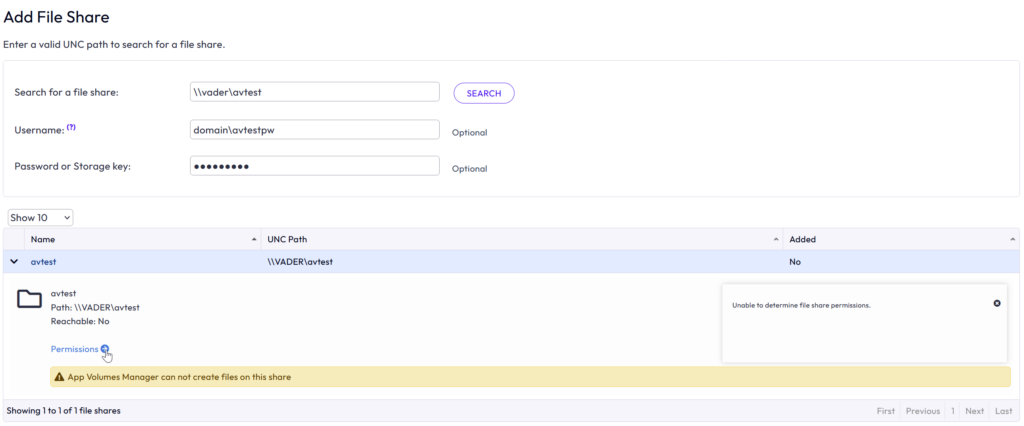
In this case we’re not going for entropy, we’re going for obviousness – our avtestpw account has a super secure password of pass”word – and therein lies our problem. Technically, we can even add the share at this point to be greeted with this lovely message:
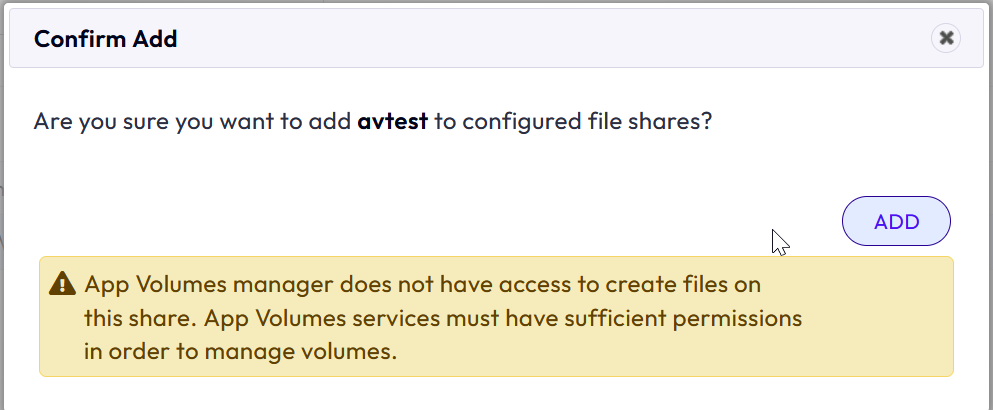
.. but ultimately, it doesn’t actually work, we can’t upload the template to the share, and certainly can’t provision any packages to it. Regardless of how many times we know we type the password correctly, and how we validate it by mapping the drive from the App Volumes server itself in Explorer, it won’t work when attempted through the App Volumes console.
Luckily, there’s a relatively easy clue in the logs, but if you managed to get here first – it’s the “.
- App Volumes uses PowerShell automation to do the mapping.
- PowerShell, especially 5.x installed by default on Windows Server still, sees “ as a string terminator and escapes the sequence, so instead of pass”word getting used to connect to the CIFS share, it’s trying to use pass and then subsequently use word as another (and obviously unknown) argument on the line it’s trying to run to map the drive.
So, long story short, don’t use quotes in your service account passwords. For that matter, don’t use anything that’s going to get used as a string terminator, escape character or otherwise break any of the many scripting languages floating around that various products use. Remember it’s length that helps far more than special characters or character substitution in a password – a 30 character phrase or block that’s just letters or numbers and letters is exponentially more secure than a 20 character one with special characters.